UX case study · Field inspection · Hospitality compliance
STC Inspector: one workflow for the inspector on site and the admin behind the desk
An MVP that connects the inspector on site with the admin who assigns, reviews and closes every inspection. I worked on the UX: user stories, flows and design follow-through to hand-off.
- Roles
- 2
- User stories
- 44
- End-to-end flows
- 2
- MVP screens
- 15
Two people carry every inspection
The platform serves hospitality in Saudi Arabia, starting with 3-star hotels and below. The inspector works in the field. The admin assigns, reviews and closes. The product had to keep both in step.
Pain points raised across the project teams, and what the MVP did with them
Low compliance rates
In the MVPViolations carry a severity, and the compliance score sets the admin’s next action: a warning note or a certificate.
Too few resources for inspections
In the MVPAdmins see each inspector’s completion rate and active tickets before assigning, and rejected tickets come back with a reason so they can be reassigned fast.
Data scattered across sources
In the MVPOne ticket holds the facility, the form, violations, photos and the activity log.
Disruption during inspections
In the MVPThe inspection form opens pre-filled with site details, and category tabs with a progress ring keep the visit short and in order.
Low awareness of regulations
Outside the MVPViolation lists follow the regulations, but informing facilities is left for a later phase.
Low service quality
Outside the MVPA long-term goal the inspection data can support, not something the MVP solves on its own.
The concept covered three users. The MVP focused on the two who run an inspection; the hotel side was left for a later phase.
Inspector
In the MVPField inspector responsible for conducting on-site inspections and submitting verified reports.
6 activities · 8 tasks · 24 storiesAdmin
In the MVPManages inspection operations, assigns tasks, monitors progress and reviews submitted reports.
5 activities · 6 tasks · 20 stories
44 user stories became two flows, four handoffs and fifteen screens
The stories for both roles, grouped by activity. One example is shown for each; open any activity to read the rest.
Inspector: Field inspector responsible for conducting on-site inspections and submitting verified reports. 6 activities, 8 tasks, 24 user stories.
- Sign in securely using credentials
- Grant required permissions (e.g., location)
- View list or map of assigned tickets
- Accept or reject assignments
- Navigate to assigned site
- Fill inspection forms and attach evidence
- Record violations with severity and corrective actions
- Review and submit inspection report
User stories
01 Authenticate and initialise session
5 stories- As an Inspector, I want to view a dashboard showing my assigned, accepted, and submitted tickets.
02 Travel to site
5 stories- As an Inspector, I want to open navigation directly from the ticket.
03 Manage active inspections
4 stories- As an Inspector, I want to open a dynamic inspection form pre-filled with site information.
04 Record and classify violations
3 stories- As an Inspector, I want to log violations for any failed inspection item.
05 Submit and finalise report
4 stories- As an Inspector, I want to review a summary of my inspection including findings, photos, and violations.
06 Post-submission and clarification
3 stories- As an Inspector, I want to receive clarification requests from admins in-app.
Two flows, joined at four handoffs
Each role has its own flow. The product works because of the places where they meet.
- 01Sign in
- 02View my assignments
- 03Open assignment
- 04Accept or reject assignment
- 05Accept?
No: provide a reason and return to the list. Yes: continue.
- 06Navigate to site
- 07Start inspection
- 08Record violations
- 09Review & submit
- 10Clarification needed?
Yes: back to Review & submit. No: end.
- 11End
How a ticket changes status
Inspector side
- Assigned
- Accepted
- On Site
- In Progress
- Submitted (Under Review)
- Closed
Admin side
- New
- Assigned
- Under Review
- Then one of: ClosedFollow-upClarification
Where the two flows meet
- 01
Admin → Inspector
A ticket is created and assigned. It appears in the inspector’s assignments.
- 02
Inspector → Admin
A rejected ticket comes back with a reason, so the admin can reassign it.
- 03
Inspector → Admin
A submitted report, with its violations and evidence, waits for review.
- 04
Admin → Inspector
If the report is not clear, the admin asks for clarification and the inspector answers on the same ticket.
Three decisions behind the screens
- 01
What happens when an inspector cannot take a ticket?
- The ticket is ignored
- Reject with a reason (chosen)
We chose
Reject with a reason, and return the ticket to the list.
Why
The admin has to know why a ticket came back in order to reassign it quickly. The reason comes from a short list, with room for details.
Trade-off
Rejecting takes the inspector one more step, and the reasons only help if the list stays short and specific.
- 02
How should violations be recorded?
- Free text
- Classified (chosen)
We chose
Classified: area, category and severity from lists, then a description and photos.
Why
Predefined lists keep records consistent with regulations. Every violation reaches the admin with a severity, evidence and a reference number.
Trade-off
A fixed list cannot cover every case, so a free-text description stays alongside it.
- 03
What should the admin do with a finished report?
- One generic action
- Next step set by the score (chosen)
We chose
The compliance score sets the main action: a warning note for a non-compliant report, a certificate for a compliant one.
Why
An admin reviews many reports. Putting the right action first saves them from searching the ticket for it.
Trade-off
A score-led action can be followed without reading the report, so the full report and activity log stay in the same panel.
Click through the delivered screens
Follow a guided path, or explore on your own.
01 / 07
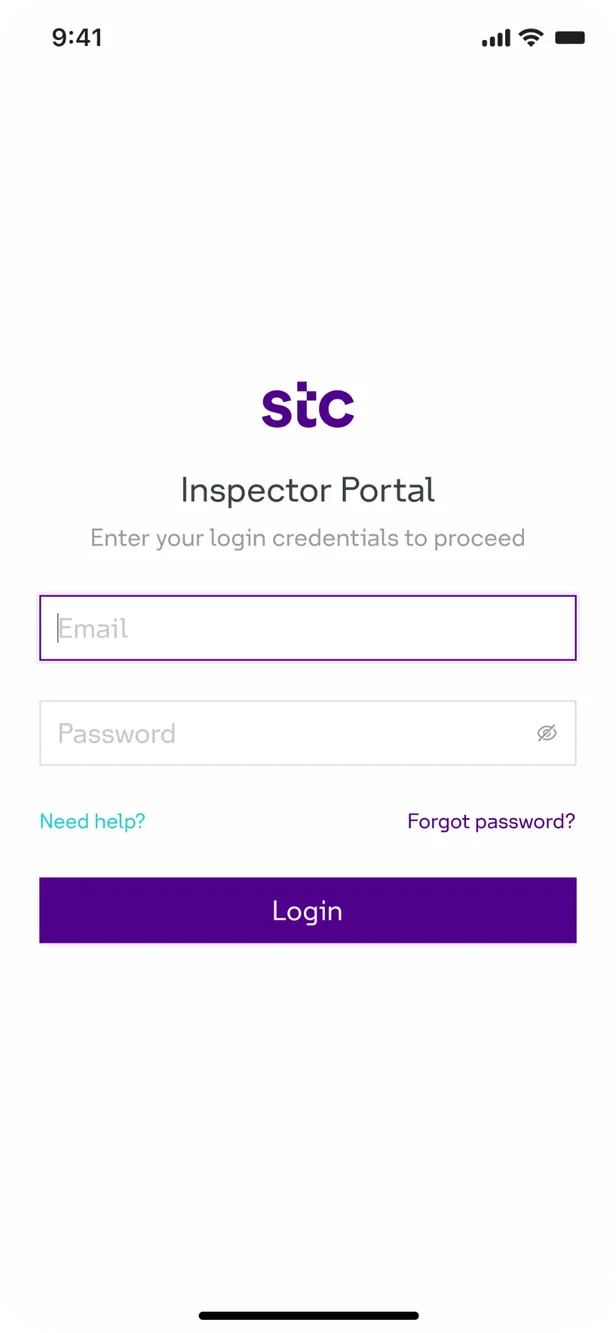
Sign in
- What this screen does
- Signs the inspector in to the Inspector Portal with an email and a password.
- Design decision
- One focused field and one primary button, with help and password recovery within reach.
- From the user tasks
- Task: sign in securely using credentials.
Click the pulsing area on the screen, or use Next. Screens are linked only where the delivered design links them.
The user stories and flows for the inspector app and the admin hub, and design follow-through with the Product Designer and the developers, through reviews until delivery. Developer reviews added an explicit success state after a violation is sent.
Delivered as an MVP. Post-launch figures did not reach the design team, so there are no results to report here.
Not shown in these screens: Arabic and right-to-left layouts, offline use, and the Tickets, Audit and Settings areas of the app.
From a ticket to a verified report.
One workflow that keeps the inspector and the admin working from the same ticket.
UX work only. The interface was designed by the Product Designer on the team. STC names and logos belong to their owners.